How do you do pdf24 ocr pdf to word in two steps?
To turn a scan into an editable Word file, first run OCR PDF on the scan with the right language, download the OCR copy, then open PDF to Word, choose that copy and keep the Editable mode. The OCR step adds a text layer; the Word step turns that text into paragraphs you can edit.
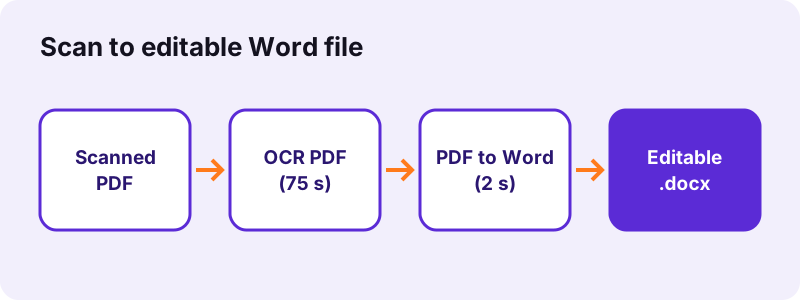
- Open OCR PDF and choose the scanned PDF or a photo of the page.
- Set the language of the document and keep the output on PDF.
- Press the button; the first run also loads the OCR engine and language data.
- Download the -ocr.pdf file.
- Open PDF to Word, choose the -ocr.pdf file, keep Editable and convert.
pdf24 ocr pdf to word: what each step produces
OCR PDF keeps the page pictures and lays invisible, selectable text over them, so the file looks the same and can now be searched. PDF to Word then reads that text layer and writes headings, paragraphs and tables into the .docx. The page pictures themselves are not carried over in Editable mode: you get the words, not the scan.
pdf24 ocr pdf to word: the shortcut for one page
For a single page you can skip the second step. Set the OCR output to Text (.txt), download the text file and paste it into Word. Our invoice scan gave about 55 words in 4.0 seconds, line by line, ready to paste. You then format it yourself.
pdf24 ocr pdf to word for photos of documents
OCR PDF also accepts JPG, PNG and other pictures, so a phone photo of a letter works without making a PDF first. Photograph the page straight on, in good light, so the letters are at least a few millimetres tall on screen.
pdf24 ocr pdf to word: tip for long scans
OCR is the slow step, about 15 seconds per page in our tests. For a 40-page scan, split it into parts of 10 pages with Split PDF, OCR each part, and merge the Word files afterwards, so a closed tab does not cost you the whole run.
What results did pdf24 ocr pdf to word give on a real scan?
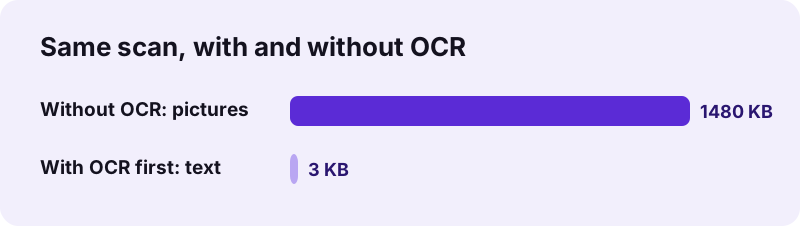
On our 5-page contract scan of 2.46 MB, OCR recognised 2,575 words in 75.1 seconds, including the first engine download. Converting the OCR copy to Word then took 2.1 seconds and gave a 3.0 KB .docx with editable text. Without OCR, the same scan became a 1.48 MB Word file of pictures.
| Input | Step | Result | Time |
|---|---|---|---|
| contract-scan-5p.pdf, 2.46 MB | OCR PDF, English | 2.60 MB PDF, 2,575 words | 75.1 s |
| OCR copy, 2.60 MB | PDF to Word, Editable | 3.0 KB .docx, text only | 2.1 s |
| contract-scan-5p.pdf, no OCR | PDF to Word, Editable | 1.48 MB, 5 pages as pictures | 7.4 s |
| scan-4p.pdf, 8.07 MB | OCR PDF, English | 457 words on 4 pages | 82.2 s |
| invoice-scan.png, 72 KB | OCR to .txt | about 55 words | 4.0 s |
The numbers show where the pdf24 ocr pdf to word time goes: about 97 % of it is recognition, while the Word step is almost instant. A text-only .docx is also about 500 times smaller than the picture version, which makes it easy to email or store.
Which languages does pdf24 ocr pdf to word recognise?
OCR for Word conversion recognises 11 languages: English, French, Spanish, Portuguese, German, Italian, Russian, Arabic, Indonesian, Turkish and Vietnamese. The page preselects the language of the site you are on, so check it before you start; the wrong language mainly hurts accented letters and words that are not in its dictionary.
| Language group | Languages | Note |
|---|---|---|
| Latin script | English, French, Spanish, Portuguese, German, Italian, Indonesian, Turkish, Vietnamese | Accents need the matching language |
| Cyrillic | Russian | Choose Russian, not English |
| Arabic script | Arabic | Right-to-left lines get Word's right-to-left setting |
“Tesseract is an optical character recognition engine for various operating systems.”
How accurate is pdf24 ocr pdf to word on different scans?
OCR accuracy for Word conversion depends mostly on how many pixels each letter has. Our invoice scan at 1654 × 2339 pixels came out correct; the same page reduced to a third had errors in names and prices, and at a fifth only 3 words were recognised. Typed text on clean paper works best; handwriting rarely does.
| Image size | Words found | Quality |
|---|---|---|
| 1654 × 2339 px | about 55 | Correct, line by line |
| 551 × 779 px | about 53 | Errors: 2550 for 25.50, Allas for Atlas |
| 330 × 467 px | about 3 | Unusable |
Scan at 300 dpi where you can; the OCR step renders PDF pages at about 300 dpi because that is what the engine is tuned for, but it cannot add detail that the scan never had.
What formatting survives pdf24 ocr pdf to word?
After OCR, the Word conversion rebuilds paragraphs, larger lines as headings, and tables whose cells are separated by clear gaps. Bold and italic usually do not survive, because recognised text carries no font weight. Pictures, logos and stamps on the scan are not copied into the Editable Word file.
Treat the pdf24 ocr pdf to word result as a draft. Read it once against the scan, fix names, figures and line breaks, and then apply your own styles; a Word heading style applied to the titles restores the structure for the navigation pane and the table of contents.
- Keep the -ocr.pdf as the faithful copy of the original pages.
- Use the .docx to edit and reuse the words.
- Re-apply bold, colours and the logo in Word; that takes minutes, retyping takes hours.
- For layout-heavy pages, compare with PDF to Word in Exact mode, which keeps the look as pictures.
Is pdf24 ocr pdf to word private for contracts and IDs?
The OCR and Word steps keep contracts and IDs private because the document never leaves your device. The browser downloads the OCR engine and language data from a public CDN, but the scan itself is read with the File API and processed locally; our request logs showed 0 POST requests and 0 bytes uploaded.
Because the engine runs in your browser, the first run on a new device takes longer while the language data loads; later runs reuse what the browser has cached. See the File API on MDN for how local files are opened. The pdf24 ocr pdf to word route therefore suits payslips, contracts and medical letters.
pdf24 OCR PDF to word: frequently asked questions
Is pdf24 ocr pdf to word free?
Yes. Both steps of pdf24 ocr pdf to word, OCR PDF and PDF to Word, are free, with no account, no page limit and no watermark. The recognition runs in your browser on your own device, so there is no server cost to charge for. Run the two steps as often as you like.
Why do I need OCR before pdf24 ocr pdf to word?
A scan stores each page as a picture, without any letters a converter could read. Converting it straight to Word only inserts those pictures, as our 1.48 MB result showed. OCR first recognises the letters and adds a text layer, which the Word step can then turn into editable paragraphs.
How long does pdf24 ocr pdf to word take?
Most of the time goes into OCR. Our 5-page scan took 75.1 seconds and a 4-page, 8.07 MB scan took 82.2 seconds, both including the first download of the engine. The Word conversion afterwards took 2.1 seconds. Phones need longer, so keep the screen on.
Can pdf24 ocr pdf to word read handwriting?
Only neat block letters, and even then with errors. The engine is trained on printed text, so cursive handwriting usually produces wrong words or nothing. For handwritten notes, typing them is often faster than correcting the recognised text afterwards, especially for names and numbers.
Does pdf24 ocr pdf to word keep the scanned images?
The OCR PDF keeps every page picture and adds invisible text on top. The Word file made from it in Editable mode contains only the text: in our test the 2.60 MB OCR copy became a 3.0 KB .docx. Keep the OCR PDF if you also need the original look.
Is my scan uploaded during pdf24 ocr pdf to word?
No. The browser reads your scan locally and runs the recognition in the page. Only the engine and language data are downloaded, from a public CDN, and they contain nothing of yours. Our request logs showed no POST request, and the result lines report 0 bytes uploaded.
Does pdf24 ocr pdf to word work on a phone?
Yes. Both tools run in Chrome, Safari and Firefox on Android and iPhone, and OCR PDF also accepts a photo straight from the camera roll. Recognition takes longer on a phone than on a laptop, so start with a short document and keep the screen awake.
Why does pdf24 ocr pdf to word give wrong numbers?
Wrong numbers usually mean the scan has too few pixels per letter. In our test, reducing the invoice image to a third turned 25.50 into 2550 and 39.90 into 309. Rescan at 300 dpi or photograph closer, then run OCR again rather than fixing every figure by hand.
Can pdf24 ocr pdf to word handle Arabic scans?
Yes. Choose Arabic as the OCR language. The recognised lines are written to Word with the right-to-left paragraph setting, so they read in the correct direction. Accuracy depends on print quality, as with any language; clean typed text gives the best results.
Is pdf24 ocr pdf to word an official tool?
No. pdf24tools is an independent website and is not affiliated with PDF24 or Geek Software GmbH. Our OCR uses the open-source Tesseract engine running in your browser. The results in this guide are our own measurements from 2 November 2026 with our own test scans.
Can pdf24 ocr pdf to word convert a locked scan?
A PDF that needs a password to open must be unlocked first. Use Unlock PDF with the password you know, then run OCR on the unlocked copy. Files with only copy or print limits can be unlocked without a password before you start the two steps.
What if pdf24 ocr pdf to word finds no text?
The OCR result line then says no text was recognised. Check that the language matches the document, that the page is not upside down, and that the scan is sharp. Rotate pages with Rotate PDF first, or rescan at a higher resolution, and run the OCR step again.
Can pdf24 ocr pdf to word make a searchable PDF instead?
Yes. Stop after the first step: the -ocr.pdf file already lets you search, select and copy text in any PDF reader while looking exactly like the scan. Convert it to Word only when you need to edit the text, not just find it.
More pdf24 OCR PDF to word tools and guides
pdf24 OCR PDF to word: sources
- Optical character recognition — Wikipedia
- Tesseract (software) — Wikipedia
- File API — MDN Web Docs