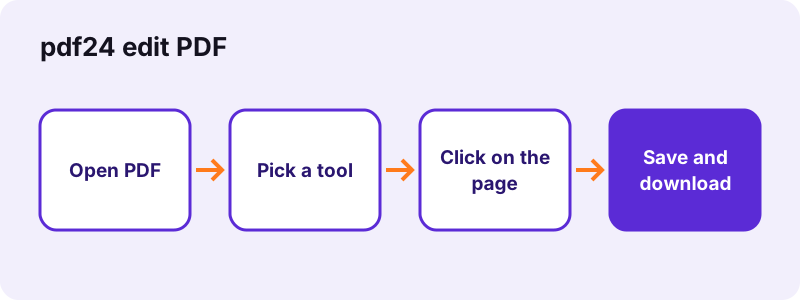
How to use pdf24 edit PDF in 5 steps
- Open the PDF. Tap Choose PDF files or drop the file on the box. Every page appears in the editor, up to 300 pages.
- Pick a tool. Choose Text, Image, Draw, Highlight, White-out or Rectangle in the toolbar, and a colour and size if you need them.
- Click or drag on the page. Click where text should start and type, or drag a box for highlights, white-out and rectangles. Drag any item to move it.
- Press Save. The additions are written into the PDF on your device. Nothing is sent to a server.
- Download and check. Save the -edited.pdf file and open it once to check that every item sits where you want it.
What can pdf24 edit PDF add to a file?
pdf24 edit PDF adds six kinds of content to existing pages: typed text, pictures (PNG, JPEG or WebP), freehand drawings, yellow highlights, white-out boxes and outlined rectangles. Each item can be moved and resized before saving, and everything is drawn into the page itself, so any PDF reader shows it the same way.
| Tool | What it does | Options | Written as |
|---|---|---|---|
| Text | Type anywhere on a page, several lines allowed | 4 colours, 10 sizes from 9 to 48 pt | Real text in an embedded Noto Sans subset |
| Image | Place a logo, stamp, photo or scanned signature | PNG, JPEG, WebP; drag to move, pull a corner to resize | Image, longest side capped at 2,000 px |
| Draw | Freehand lines with mouse, pen or finger | 4 colours | Transparent PNG trimmed to the strokes |
| Highlight | Mark text like a highlighter pen | Yellow, 45 % opacity, multiply blend | Translucent rectangle |
| White-out | Cover something with a white box | Drag to size | Opaque white rectangle (text below stays in the file) |
| Rectangle | Frame a figure, a total or a clause | 4 colours, 1.5 pt line | Outlined rectangle |
The colours are black, blue, red and green, and the text sizes are 9, 10, 11, 12, 14, 16, 18, 24, 32 and 48 pt, with 14 pt as the starting value. Select an item on the page to change its colour or size afterwards.
pdf24 edit PDF step by step on a real invoice
Our test file was a 2-page invoice of 2.4 KB. We picked Text, clicked in the empty space under the totals, typed Approved by Lina and pressed Save. The download, invoice-v1-edited.pdf, weighed 6.7 KB: the extra 4.3 KB is the subset of the font that holds only the letters we typed. Both pages kept their original text, and the new line could be selected and searched like the rest.
pdf24 edit PDF on a phone or tablet
On Android and iPhone, pdf24 edit PDF works with your finger: tap a tool, tap the page, then type with the on-screen keyboard. Drag an item to move it and pull its corner handle to resize it. Zoom the browser page with two fingers if the text is small; the positions are stored as fractions of the page, so zooming never shifts what you placed.
pdf24 edit PDF on Windows, Mac and Linux
On a computer, pdf24 edit PDF runs the same toolbar in Chrome, Edge, Firefox or Safari without an install. A mouse gives the most precise placement for text and white-out boxes, and a drawing tablet or trackpad works well with Draw. Keyboard users can tab to an item, which is focusable, and type straight into a text box.
pdf24 edit PDF tip: place text on a form line
To fill a printed line that has no form field, choose 11 or 12 pt, click just above the line and type. If the PDF already has real form fields, the Fill out PDF tool is faster, because it lists every field and keeps the answers editable.
pdf24 edit PDF and rotated or odd-sized pages
Items are stored as a position on the page as you see it and converted to PDF points with the same maths the viewer uses, so text lands correctly on landscape pages, pages rotated by 90 or 270 degrees and unusual page boxes such as receipts or A3 drawings.
Can pdf24 edit PDF change the text that is already in the file?
pdf24 edit PDF does not rewrite existing words in place. A PDF stores text as positioned glyphs, not as flowing paragraphs, so the honest way to correct a word is to cover it with a white-out box and type the new word on top. The result looks clean on screen and on paper.
“Based on the PostScript language, a PDF file encapsulates a complete description of a fixed-layout document”
Fixed layout is the reason: a line in a PDF is a set of characters with exact coordinates, often in a font that is only partly embedded. Changing a word inside such a line would need the missing letters of that font and would not push the rest of the line along. Editors that promise in-place editing either guess the font or rebuild the page.
pdf24 edit PDF: replace a word with white-out and text
- Choose White-out and drag a box over the old word, slightly larger than the letters.
- Choose Text, pick a size close to the original (most body text is 10–12 pt) and click inside the white box.
- Type the new word, then drag it until the baseline matches the line around it.
- Press Save and zoom in on the result to check the alignment.
White-out hides text visually only. The covered words are still inside the file and can be copied or found by search. To remove them for good, use Redact PDF, which turns the affected pages into images with the black boxes burnt in.
pdf24 edit PDF when you need to rewrite whole paragraphs
For larger rewrites, convert the file with PDF to Word, change the text in a word processor, then turn it back with Word to PDF. This route reflows the text but can move images and line breaks, so it suits letters and reports better than designed brochures.
pdf24 edit PDF: typing text in any language
Text typed with pdf24 edit PDF is written as real, selectable text in Noto Sans, a font that covers Latin, Greek and Cyrillic letters with accents. Only the characters you used are embedded, which keeps the file small: our one-line edit added 4.3 KB. Press Enter for a new line; the line height follows the size you picked.
pdf24 edit PDF with Arabic, Hebrew, Hindi, Thai, Chinese or Japanese
Scripts that need shaping or right-to-left order (Arabic, Hebrew, Devanagari, Thai) and Chinese, Japanese and Korean characters are rendered by your browser and placed on the page as a sharp transparent image at the size you chose. They print and display correctly, but that line cannot be selected or searched later. Latin text on the same page stays real text.
pdf24 edit PDF and the date or a short note
For a date, a reference number or an initial, 10 or 11 pt in black or blue looks most like the printed text around it. Red at 12–14 pt works for review notes such as see page 4. If the note is a comment rather than a correction, the Annotate PDF page explains the review workflow.
pdf24 edit PDF: adding images, logos and stamps
Choose Image, pick a PNG, JPEG or WebP file, then click on the page: pdf24 edit PDF places the picture at about 35 % of the page width, ready to drag and resize. Corner resizing keeps the proportions, so a logo never stretches. PNG and WebP keep transparency, which is what you want for a stamp or a scanned signature on a white background.
pdf24 edit PDF image size and quality
Pictures are scaled down so their longest side is at most 2,000 pixels before they are embedded; JPEG photos are saved at 90 % quality. A 2,000-pixel image across an A4 page is about 240 dpi, sharp enough for print, while a 12-megapixel phone photo does not add 4 MB to your file. To add a whole scanned page instead of a picture on a page, use Merge PDF.
pdf24 edit PDF for signatures
You can place a signature image with the Image tool, but Sign PDF is made for it: it lets you draw, type or upload a signature, removes the white paper background, adds initials and the date, and remembers the signature while the page is open.
pdf24 edit PDF: drawing, highlighting and framing
Draw records strokes from a mouse, pen or finger and saves them as one transparent image trimmed to the lines you drew, so a circle around a figure does not cover the rest of the page. Highlight paints a yellow box at 45 % opacity with a multiply blend, so the black text below stays fully readable on screen and in print.
pdf24 edit PDF rectangles for totals and clauses
Rectangle draws an outline with a 1.5 pt line in black, blue, red or green and no fill. It is the clearest way to point a reader at a total, a signature box or a clause without hiding anything. Combine a red rectangle with a short red text note for review comments that survive printing.
Is pdf24 edit PDF safe for contracts and personal files?
pdf24 edit PDF processes the file inside your browser: the page reads it with the File API, draws the pages with pdf.js and writes the result with pdf-lib, all on your device. Our result line read 0 bytes uploaded. Nothing is stored after you close the tab, so signed contracts, payslips and IDs stay with you.
| Question | Answer |
|---|---|
| Bytes uploaded during an edit | 0 (shown on the result line) |
| Account or e-mail needed | No |
| Watermark added | No |
| Files kept after closing the tab | None |
| Downloads from the web | The page, the PDF engine and one font file, once |
You can check how pdf24 edit PDF handles your file yourself: open the browser's developer tools, switch to the Network tab and edit a file. You will see the font and script files load, but no request that carries your PDF. The File API documentation on MDN explains how a page reads a local file without sending it.
pdf24 edit PDF with password-protected files
A PDF that needs a password to open shows an error in the editor instead of its pages. Remove the password first with Unlock PDF (you need to know it), edit the copy, and protect it again with Lock PDF if the file must stay private. Files that open without a password but carry print, copy or edit limits (an owner password) save normally: the editor lifts those limits on your device when it saves, as our restricted test file showed.
How fast is pdf24 edit PDF, and how much bigger does the file get?
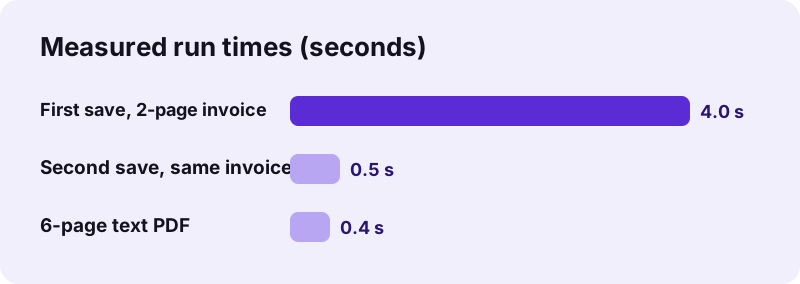
pdf24 edit PDF saved our 2-page invoice in 4.0 seconds on the first run, because the font engine loads once, and in 0.5 seconds on the next run. A 6-page text PDF took 0.4 seconds. File size grows only by what you add: 4.3 KB for one line of text.
| Test file | Edit | Before | After | Time |
|---|---|---|---|---|
| Invoice, 2 pages | 1 line of text (first run) | 2.4 KB | 6.7 KB | 4.0 s |
| Invoice, 2 pages | 1 line of text (second run) | 2.4 KB | 6.7 KB | 0.5 s |
| Text document, 6 pages | 1 line of text | 5.1 KB | 9.2 KB | 0.4 s |
| Invoice, 2 pages | Drawn signature (via Sign PDF) | 2.4 KB | 7.5 KB | 0.2 s |
pdf24 edit PDF with large scans
Scanned PDFs are heavy because each page is a photo. pdf24 edit PDF draws only the pages that scroll into view, which keeps the browser responsive, but a 100 MB scan still needs memory on a phone. If a scan is slow, shrink it first with Compress PDF, then edit the smaller copy.
pdf24 edit PDF compared with the annotate and write pages
Three pages of this site open the same editor as pdf24 edit PDF, each written for a different job. Use this page when you change the document itself; use the others when your task is narrower.
| Task | Best page | Why |
|---|---|---|
| Correct a typo, add a logo, fill a blank | Edit PDF (this page) | All 6 tools, white-out plus text |
| Review a draft with highlights and remarks | Annotate PDF | Workflow for review marks |
| Type answers on a printed form or worksheet | Write on PDF | Text placement on lines and boxes |
| Fill real form fields | Fill out PDF | Lists every field, keeps answers editable |
| Remove confidential text for good | Redact PDF | Burns black boxes into the page |
pdf24 edit PDF and real PDF comments
Everything you add with pdf24 edit PDF is drawn into the page content, not stored as a separate comment object. That makes the edit permanent and identical in every viewer, but it also means a reader cannot hide or reply to your marks in a comments panel. For review rounds where the author must accept or reject each note, keep a copy of the unedited file.
Why is pdf24 edit PDF not working on my file?
pdf24 edit PDF usually fails for one of four reasons: the file is password-protected, it is damaged, the browser ran out of memory on a huge scan, or nothing was placed before pressing Save. Each case shows its own message, and each has a fix that takes less than a minute.
| What you see | Cause | Fix |
|---|---|---|
| “This PDF is password-protected” | Encryption | Unlock PDF, then edit |
| “Could not open this PDF” | Damaged or not a real PDF | Repair PDF, then edit |
| “Nothing added yet” | Save pressed before placing an item | Pick a tool and click on a page first |
| Tab reloads or freezes | Very large scan on a phone | Compress PDF first, or use a computer |
pdf24 edit PDF: text looks smaller than the original
The size list is in points, the unit PDF uses, while the editor preview scales with your screen. If the new words look small next to the printed ones, select the text box and step the size up from 11 to 12 pt; zoom the page to compare before you save.
pdf24 edit PDF limits you should know
pdf24 edit PDF is built for additions and quick corrections, and we prefer to list its limits plainly so you can pick the right tool before you start. Each point below links to the page that covers the case better.
- Existing text is covered and retyped, not edited in place.
- White-out hides text but does not delete it; use Redact PDF for that.
- Complex scripts and CJK text are placed as images, so they are not searchable.
- Additions are page content, not removable comments.
- The editor shows up to 300 pages; longer files can be split with Split PDF first.
- Form fields, links and bookmarks in the original are kept as they were.
pdf24 edit PDF: frequently asked questions
Is pdf24 edit PDF free?
Yes. pdf24 edit PDF on pdf24tools costs nothing, needs no account and adds no watermark. There is no daily limit either, because the work happens on your own device: your browser does the processing, so there is no server time to pay for. You can edit as many files as you like, one after another, in the same tab.
Can pdf24 edit PDF edit existing text?
Not in place. A PDF stores fixed lines of positioned characters, so the editor covers the old word with a white-out box and lets you type the new one on top, in a size you choose from 9 to 48 pt. For long rewrites, convert to Word, change the text and convert back to PDF.
Does pdf24 edit PDF upload my document?
No. The file is read by the browser's File API and processed by JavaScript on your device. The result line of our test showed 0 bytes uploaded, and the network log contained only the page, the PDF engine and a font. When you close the tab, nothing remains on any server because nothing was sent.
Can I use pdf24 edit PDF on an iPhone?
Yes. Open the page in Safari or Chrome on iPhone or iPad, choose the PDF from Files, then tap a tool and tap the page. The on-screen keyboard types into text boxes, and drag gestures move and resize items. Save writes the file to Downloads, from where you can share it by mail or messages.
Does pdf24 edit PDF keep the original text selectable?
Yes. The pages are not turned into pictures: your additions are drawn on top of the existing content, and the original text, links and form fields stay as they were. In our test the 6-page document still had all 1,944 words selectable after the edit, plus the new line we typed.
How do I add a picture with pdf24 edit PDF?
Choose Image, pick a PNG, JPEG or WebP file and click on the page. The picture appears at about a third of the page width; drag it into place and pull the corner to resize without stretching. Large photos are scaled to 2,000 pixels on the long side, which still prints sharply on A4.
Can pdf24 edit PDF remove text permanently?
No. White-out only paints a white box, and the covered words stay inside the file, where copy and search can still find them. To delete confidential text for good, use Redact PDF: it turns the marked pages into images with black boxes burnt in, so the hidden words are gone from the file.
Why does pdf24 edit PDF say the file is protected?
The PDF is encrypted with an open password, so the browser cannot read its pages. Remove the password with Unlock PDF, which needs the password you were given, then edit the unlocked copy. Files with only print or copy restrictions open in the editor and save directly; the edited copy no longer carries those restrictions.
Does pdf24 edit PDF work offline?
Partly. The page, the PDF engine and the font must load once over the internet. After that the editing itself runs on your device, and a brief loss of connection during the edit does not affect the result. A full offline install is not offered; the browser keeps the files in its normal cache.
How big can a file be in pdf24 edit PDF?
There is no fixed upload limit because nothing is uploaded; the limit is your device memory. Text PDFs of hundreds of pages open quickly, and the editor shows up to 300 pages. Large scans of 100 MB or more can be slow on phones, so compress them first or use a computer.
Can I change the font in pdf24 edit PDF?
The text tool writes in Noto Sans, a clean font that covers Latin, Greek and Cyrillic letters with accents. You can choose 4 colours and 10 sizes, but not another font family. Text in Arabic, Hebrew, Indic scripts, Thai, Chinese, Japanese or Korean is drawn by the browser and placed as an image.
Will pdf24 edit PDF add a watermark or logo?
No. The saved file contains your original pages and the items you placed, nothing else: no watermark, no footer and no hidden branding. If you want a watermark on purpose, the Add watermark tool stamps text such as CONFIDENTIAL across every page at an opacity you choose.
Can pdf24 edit PDF undo a change?
Before saving, select any item and remove it, or drag it to a new place; nothing touches the file until you press Save. After saving, the additions are part of the page. Keep the original file: opening it again gives you a clean start, which is the safest undo there is.
Does pdf24 edit PDF work on scanned documents?
Yes. You can add text, pictures, highlights and white-out to scanned pages exactly as to digital ones. Highlights on a scan mark the picture of the text, so search still finds nothing on that page. Run OCR PDF first if you need the scanned words to become searchable.
How do I highlight text with pdf24 edit PDF?
Choose Highlight and drag across the line you want to mark. The editor paints a yellow box at 45 % opacity with a multiply blend, so the black letters stay crisp on screen and in print. Drag the box edges to adjust it, and press Save when all marks are placed.
Can I edit a PDF form with pdf24 edit PDF?
You can type over a form, but if the PDF has real form fields, Fill out PDF is better: it lists every field, writes the answers into them and keeps them editable. If the form has no fields, Make PDF fillable can turn its blank lines into fields for you.
Does pdf24 edit PDF keep links and bookmarks?
Yes. The editor loads the original document and only adds drawing operations to the pages you changed. Links, bookmarks, form fields, metadata and page sizes are saved as they were. In our test the page count and all original text were identical before and after editing.
Who makes the pdf24 edit PDF tool?
The pdf24tools team makes it. pdf24tools is an independent website and is not affiliated with PDF24 or Geek Software GmbH. We built our own editor that runs entirely in your browser, and we describe only what our tool does, including its limits, based on our own tests.
Can two people edit with pdf24 edit PDF at the same time?
No. Each browser tab works on its own copy, and nothing is shared online. For a review round, one person saves the edited file and sends it on, and the next person opens that file and adds their marks. Use different colours per reviewer to keep the changes readable.
Why do my pdf24 edit PDF changes look blurry?
Text is vector and stays sharp at any zoom. Blur comes from pictures: a small logo stretched over half a page, or a low-resolution signature photo. Use an image of at least 1,000 pixels wide for a logo, prefer PNG for drawings and stamps, and avoid enlarging small files.
Which browsers support pdf24 edit PDF?
It runs in current versions of Chrome, Edge, Firefox and Safari on Windows, macOS, Linux, Android and iOS. The editor needs JavaScript and canvas support, which every modern browser has. We ran the measurements on this page in Chrome on a Windows laptop.
More pdf24 edit PDF tools and guides
pdf24 edit PDF: sources
- PDF — Wikipedia
- PDF (Portable Document Format) Family — Library of Congress
- File API — MDN Web Docs
- Font embedding — Wikipedia