How to use pdf24 annotate PDF in 4 steps
- Open the PDF. Choose the file or drop it on the box; the pages appear one under another.
- Mark what matters. Drag Highlight over sentences, use Draw to circle or underline, and Rectangle to frame a passage.
- Write your remarks. Pick Text, choose red or blue, click in the margin and type the note.
- Save and share. Press Save, download the -edited.pdf file and send it to the author or keep it for your notes.
What can you mark with pdf24 annotate PDF?
pdf24 annotate PDF offers four review marks: a yellow highlight at 45 % opacity, freehand drawing for circles, arrows and underlines, outlined rectangles in 4 colours, and typed notes from 9 to 48 pt. Together they cover what reviewers do with a pen on paper, without printing the document first.
| Mark | Tool | How | Looks like |
|---|---|---|---|
| Highlight a sentence | Highlight | Drag across the line | Yellow marker, text stays readable |
| Circle or underline | Draw | Draw with mouse, pen or finger | Ink line in black, blue, red or green |
| Frame a clause or figure | Rectangle | Drag a box | 1.5 pt outline, no fill |
| Write a remark | Text | Click in the margin and type | Real text, 9–48 pt |
| Hide a passage | White-out | Drag a box | White cover (text stays in the file) |
“An annotation is extra information associated with a particular point in a document or other piece of information.”
pdf24 annotate PDF on a test invoice
To test pdf24 annotate PDF we opened a 2-page invoice of 2.4 KB, added a note in the margin and saved. The save took 0.5 seconds and the file came out at 6.7 KB; the extra 4.3 KB is the subset of the font used for the typed note. The invoice text below the marks stayed selectable.
pdf24 annotate PDF with a pen or finger
Draw follows a mouse, a stylus or a finger, so on a tablet pdf24 annotate PDF lets you mark a PDF the way you would mark paper. Each drawing is saved as a transparent image trimmed to your strokes, which means a circle around a number leaves the rest of the page untouched.
pdf24 annotate PDF on a laptop
With a mouse or trackpad, Highlight and Rectangle are more precise than Draw, because they snap to the box you drag. Type remarks instead of handwriting them: typed notes stay legible when the file is printed or viewed on a phone.
pdf24 annotate PDF tip: one colour per meaning
Agree a simple code before a review: yellow highlight for key facts, red box and red note for errors, blue note for questions, green for approved passages. Readers then understand the marks without a legend.
How does pdf24 annotate PDF store the marks?
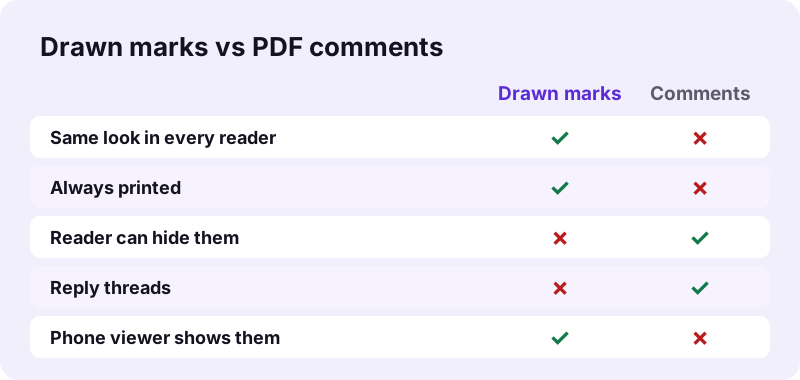
pdf24 annotate PDF draws every mark into the page content when you save. The highlight, ink and notes therefore look identical in every viewer, browser and printer. The flip side is that they are not separate comment objects: a reader cannot hide, reply to or resolve them in a comments panel.
| Point | pdf24 annotate PDF (drawn marks) | PDF comment objects |
|---|---|---|
| Same look in every reader | Yes | Depends on the reader |
| Visible when printed | Always | Only if the print setting includes comments |
| Can be hidden or deleted by the reader | No | Yes |
| Reply threads | No | In some readers |
| Works in a phone's built-in viewer | Yes | Often partly |
For most reviews, sending a marked copy back to the author is enough, and the drawn marks make sure nothing gets lost in a viewer that ignores comments. Keep the clean original so the author can apply changes to it.
pdf24 annotate PDF and existing comments in the file
Comments that are already in the PDF stay where they are; the tool does not remove them. If you want old sticky notes and form fields turned into plain page content first, run Flatten PDF before annotating.
pdf24 annotate PDF for study, teaching and proofreading
Marking up text is older than print. Students highlight lecture notes, teachers correct essays, editors mark proofs. The same marks work on a PDF when the tool draws them sharply and keeps the text readable underneath.
“In the past, proofreaders would place corrections or proofreading marks along the margins of printed text.”
pdf24 annotate PDF for lecture notes and articles
With pdf24 annotate PDF, highlight definitions in yellow, frame formulas with a rectangle and add a typed note with the page of the textbook. Because the highlight uses a multiply blend, black text under it stays at full contrast, even on a grey-printed scan.
pdf24 annotate PDF for marking essays and homework
Teachers can circle mistakes with Draw, add a short red comment and type a grade at the top in 18 or 24 pt. Send the file back as a PDF; students open it on any phone without installing anything. For answers students type onto worksheets, see Write on PDF.
pdf24 annotate PDF for contract review
Frame each clause you question with a red rectangle and number your remarks in the margin, such as 1. Notice period?. The receiver sees exactly which wording you mean. Corrections to the text itself belong in Edit PDF, and comparing two versions afterwards is quicker with Compare PDF.
Is pdf24 annotate PDF private?
pdf24 annotate PDF works on your own device: the browser opens the file, draws the pages and writes the marked copy locally, and our result line read 0 bytes uploaded. That matters for exam papers, medical letters and draft contracts, which should not sit on someone else's server while you review them.
The page loads the PDF engine and one font file once; those are the only downloads. You can confirm it in the browser's Network tab. The File API on MDN explains how a web page reads a local file without sending it.
pdf24 annotate PDF: what it does not do
The tool is honest about a few limits, so you can choose a different route where needed.
- No sticky-note comment objects, reply threads or comment lists; marks become page content.
- No text-snapping highlight: you drag the box, so on tilted scans drag line by line.
- Notes in Arabic, Hebrew, Indic scripts, Thai, Chinese, Japanese or Korean are placed as images and are not searchable.
- Marks cannot be removed after saving; keep the original.
- Up to 300 pages are shown in the editor; split longer files with Split PDF.
pdf24 annotate PDF: frequently asked questions
Is pdf24 annotate PDF free?
Yes. Annotating on pdf24tools is free, with no account, no watermark and no daily limit. Everything runs in your browser on your own device, so there is no server work to charge for. Mark up as many files as you need, one after another in the same tab.
Can I highlight text with pdf24 annotate PDF?
Yes. Choose Highlight and drag across the words. The tool paints a yellow box at 45 % opacity with a multiply blend, so the letters underneath stay sharp and black. On scans the highlight marks the picture of the text, which looks the same but is not linked to searchable words.
Does pdf24 annotate PDF add real PDF comments?
No. The marks are drawn into the page when you save, not stored as separate comment objects. They look the same in every reader and always print, but a reader cannot hide or reply to them. Keep an unmarked copy if the author needs a clean file.
Can I draw on a PDF with pdf24 annotate PDF?
Yes. Draw records lines from a mouse, trackpad, stylus or finger in black, blue, red or green. Each drawing is saved as a transparent image trimmed to the strokes, so circles, arrows and underlines do not cover anything else on the page.
Does pdf24 annotate PDF upload my file?
No. The file is read and processed by your browser, and the result line in our test showed 0 bytes uploaded. Only the page, the PDF engine and a font are downloaded. Nothing is stored on a server, so there is nothing to delete after you close the tab.
Can I annotate a PDF on iPad with pdf24 annotate PDF?
Yes. Safari and Chrome on iPad support it, and Apple Pencil works with the Draw tool for handwritten circles and underlines. Typed notes use the on-screen or a hardware keyboard. The marked copy saves to Files, ready to share by mail.
Can I remove an annotation in pdf24 annotate PDF?
Before saving, yes: select a mark and remove it, or drag it to another place. After saving, marks are part of the page content and cannot be lifted off. Open your original file again to start over, which is why keeping it is a good habit.
What colours does pdf24 annotate PDF offer?
Text, drawings and rectangles come in black, blue, red and green; highlights are yellow. Four colours are enough for a review code, for example red for errors, blue for questions, green for approved and yellow for key facts, and they stay distinct on colour and greyscale printers.
Can pdf24 annotate PDF mark up a scanned PDF?
Yes. Scanned pages accept highlights, drawings, boxes and notes like digital pages. Searching the scanned words is a separate step: run OCR PDF first if you want to find text on those pages, then annotate the OCR copy so both the marks and the searchable text are in one file.
Will pdf24 annotate PDF marks show when printed?
Always. Because the marks are drawn into the page content, every printer and print dialog includes them, with no special comments setting. Yellow highlights print as light yellow or light grey on a black-and-white printer, and text under them stays readable.
How large a file can pdf24 annotate PDF handle?
There is no upload limit, since nothing is uploaded; your device memory sets the limit. The editor shows up to 300 pages and draws only pages that scroll into view. Large scans can be slow on phones, so compress them first or use a computer.
Who makes the pdf24 annotate PDF tool?
The pdf24tools team makes it. pdf24tools is an independent website and is not affiliated with PDF24 or Geek Software GmbH. The annotation tool here was built separately, runs entirely in your browser, and is described on this page only from our own tests with our own files.
More pdf24 annotate PDF tools and guides
pdf24 annotate PDF: sources
- Annotation — Wikipedia
- Proofreading — Wikipedia
- File API — MDN Web Docs