pdf24 tools how to use: what are the 4 steps every tool shares?
Every tool works the same way: choose the file, set the options shown under it, press the big action button and download the result. How you use the tools does not change between Merge PDF, Compress PDF or OCR PDF; only the options differ, and each option has a one-line hint underneath.
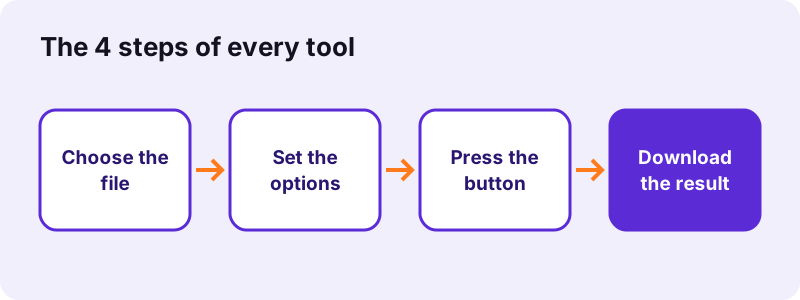
- Open the tool, for example Merge PDF.
- Tap Choose PDF files or drop the files on the box.
- Set the options: order, level, page size, language or range.
- Press the button (Merge PDF, Compress PDF, Convert …).
- Click the download link; the line below it shows the time and 0 bytes uploaded.
The short version of pdf24 tools how to use is therefore: one file box, one options panel, one button. If you learn it on Merge PDF, you already know how to compress, split, convert, sign or OCR a file, because the layout and the order of the steps never change.
pdf24 tools how to use with more than one file
Tools that accept several files show each one as a row with a thumbnail, its size and up and down arrows. The order of the rows is the order of the pages in a merged result. The x button removes a file, and Add more files keeps the ones you already picked.
pdf24 tools how to use the page view
Page tools such as Split, Rotate or Remove pages show every page as a small picture. Click a page to mark it, use the arrows to move it, and the result follows exactly what the preview shows. Nothing is changed in your original file.
pdf24 tools how to use the result line
After each run a line under the download link states what happened, for example 80% smaller: 2.46 MB to 493 KB, and how long it took. Read it before you send the file: it also warns when a target size was missed or when scanned pages had no text.
pdf24 tools how to use: tip for big jobs
Several outputs, such as the 6 pages of a split, download together as one ZIP file. On a phone, unzip it in the Files app; on a computer, double-click it.
Which tool should you pick? pdf24 tools how to use by task
Pick the tool by the result you need, not by the file you have. To join files use Merge PDF, to make a file smaller use Compress PDF, to change text use Edit PDF or PDF to Word, and to read a scan use OCR PDF. The table below lists the tools we tested.
| Task | Tool | Test file | Measured result |
|---|---|---|---|
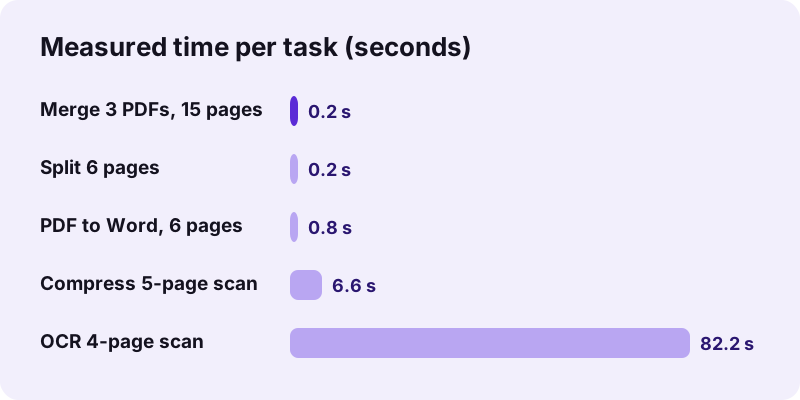
| Join files | Merge PDF | 3 PDFs, 10.54 MB | 15 pages in 0.2 s |
| Cut into pages | Split PDF | text-6p.pdf | ZIP with 6 files, 0.2 s |
| Make smaller | Compress PDF | 5-page scan, 2.46 MB | 493 KB, 6.6 s |
| Photos to PDF | JPG to PDF | 3 photos, 10.80 MB | 3 pages, 0.3 s |
| Edit in Word | PDF to Word | 6 typed pages | 2.9 KB .docx, 0.8 s |
| Read a scan | OCR PDF | 4-page scan | 457 words, 82.2 s |
| Tables to sheets | PDF to Excel | 2-page invoice | 26 cells, 0.6 s |
When two tools seem to fit, start with the one that changes the least. For pdf24 tools how to use on a scanned contract, for example, run OCR PDF before PDF to Word, because Word conversion needs real text and treats scanned pages as pictures.
pdf24 tools how to use on a phone, a Mac or a Chromebook?
The tools run in any current browser, so using them on a phone, Mac, Windows PC, Linux laptop or Chromebook is the same: open the page, choose the file and press the button. There is nothing to install. Phones are slower on big scans because the device itself does the work.
- iPhone and iPad: Safari or Chrome; pick files from the Files app; results go to Downloads in Files.
- Android: Chrome, Edge, Firefox or Samsung Internet; results go to Downloads.
- Windows, macOS, Linux: drag files onto the box or use the file dialog.
- Chromebook: files come from the Files app or Google Drive once synced locally.
On every device, pdf24 tools how to use stays identical: the same buttons in the same places. The only difference is speed. A 5-page scan compressed in 6.6 seconds on our laptop; expect a phone to need noticeably longer for the same file.
Are files uploaded when you follow pdf24 tools how to use?
No file is uploaded. The browser reads each file with the File API, and the tools process it in JavaScript and WebAssembly on your own device. In all our test runs the request log showed 0 POST requests, and every result line stated 0 bytes uploaded. Closing the tab clears the file from memory.
“The File API enables web applications to access files and their contents.”
One exception to know: OCR PDF downloads its recognition engine and the language data from a public CDN the first time you use it. Your document still stays on the device; only the engine comes in.
pdf24 tools how to use: the honest limits of each tool
Each tool tells you its limits in the result line, and they are worth knowing before you start. Compression and redaction turn affected pages into pictures, Edit PDF adds content instead of rewriting existing text, Word to PDF uses Noto Sans fonts, and a password-protected file must be unlocked first.
| Tool | Limit we measured or read in the code |
|---|---|
| Compress PDF | Scans are redrawn as JPEG, text layer lost on those pages |
| Edit PDF | White-out covers text, it is still inside the file |
| Redact PDF | Redacted pages become pictures; other pages keep text |
| Word to PDF | Fonts replaced by Noto Sans; no headers, footers, footnotes |
| PDF to Word / Excel | Scans need OCR PDF first |
| Sign PDF | Visible signature image, not a certificate signature |
These limits are the price of running in the browser without a server. Reading them is part of pdf24 tools how to use well: when one of them matters, the result line names the tool that solves it, such as Redact PDF or OCR PDF.
What if a tool fails while you follow pdf24 tools how to use?
When a tool fails, the status line under the button says why in plain words. The usual causes are a password-protected file, a damaged file, a file type the tool does not accept, or a phone running out of memory on a very large scan. Each has a quick fix listed below.
- Password-protected: open it with Unlock PDF and your password, then retry.
- Damaged: rebuild it with Repair PDF; our broken test file was fixed in 0.8 s.
- Wrong type: the box lists the accepted formats; convert first.
- Out of memory: split the file and process the parts.
pdf24 tools how to use: frequently asked questions
Is pdf24 tools how to use the same for every tool?
Yes. All tools on pdf24tools share the same four steps: choose the file, set the options, press the button and download the result. Only the options change, for example the compression level, the page range or the OCR language. Each option has a short hint that explains what it does.
Do I need an account for pdf24 tools how to use?
No. There is no sign-up, login or email step on any tool. You open the page and start. Because nothing is stored on a server, there is no account history either: keep the downloaded result, since the site cannot show it to you again later.
Is pdf24 tools how to use free?
Yes. Every tool is free to use, with no watermark, no daily limit and no paid tier. The processing runs on your own phone or computer, so there are no server costs for each file. Large files are limited only by the memory of your device.
How long does pdf24 tools how to use take per file?
Most tasks take under a second. In our tests merging 15 pages took 0.2 seconds, PDF to Word 0.8 seconds and compressing a 5-page scan 6.6 seconds. OCR is the slow one: a 4-page scan took 82.2 seconds, including the first download of the English language data.
Can pdf24 tools how to use work on iPhone?
Yes. Open the tool in Safari or Chrome, tap Choose PDF files and pick the document in the Files app. The result is saved to the Downloads folder in Files. Keep the screen on during long jobs such as OCR, because iOS may pause a background tab.
Where do files go with pdf24 tools how to use?
Nowhere except your device. The original stays where it was, untouched, and the result goes to your browser's download folder with a clear ending such as -compressed.pdf, -signed.pdf or -page-1.pdf. Several results come as one ZIP file that you unzip on your device.
Does pdf24 tools how to use keep my original file?
Yes. The tools work on a copy in memory and never overwrite the file you chose. You always get a new file to download. If you do not like the result, press Start over, change an option and run the tool again on the same original.
Can pdf24 tools how to use open password-protected PDFs?
Only after unlocking. A PDF with an open password stops with the message that it is password-protected. Use Unlock PDF with the password you know to make an open copy, then run the tool you need. Files with only print or copy limits can be unlocked without a password.
Why does pdf24 tools how to use say no text was found?
The PDF is most likely a scan, which is a picture of a page with no text layer. PDF to Word, PDF to Excel and search tools need real text. Run OCR PDF first to recognise the words, then convert the OCR copy: our contract scan gave 2,575 recognised words.
Is pdf24 tools how to use safe for private documents?
Yes, because nothing leaves your device. The browser opens the file locally and all processing happens in JavaScript and WebAssembly on your phone or computer. Our request log showed no upload in any test, which makes the tools suitable for contracts, IDs and medical letters.
Can pdf24 tools how to use handle many files at once?
Yes, for tools that accept several files, such as Merge PDF, Compress PDF and JPG to PDF. We merged three PDFs of 10.54 MB in 0.2 seconds and turned 7 mixed images into a 9-page PDF in 4.1 seconds. There is no file-count limit, only your device's memory.
Is pdf24 tools how to use about an official app?
No. pdf24tools is an independent website and is not affiliated with PDF24 or Geek Software GmbH. This guide describes our own browser tools, and every number in it comes from our own test runs on 2 November 2026, not from any other product.
Does pdf24 tools how to use work offline?
Partly. The page and the libraries a tool needs must load once from the internet. After that the processing itself runs on your device and sends nothing. There is no installable app, so if you lose the connection before a tool has loaded, reload it once you are online again.
More pdf24 tools how to use tools and guides
pdf24 tools how to use: sources
- File API — MDN Web Docs
- WebAssembly — Wikipedia
- PDF (Portable Document Format) Family — Library of Congress